The Domain Scanner.
EasyDMARC's most-used tool among guest, logged-out visitors — a free, no-login domain health check that's the top of the whole funnel. I designed the scan state, the post-scan report, a guided fix funnel with a dedicated track for every failing record, and an embeddable widget builder — all on the EasyDMARC design system.
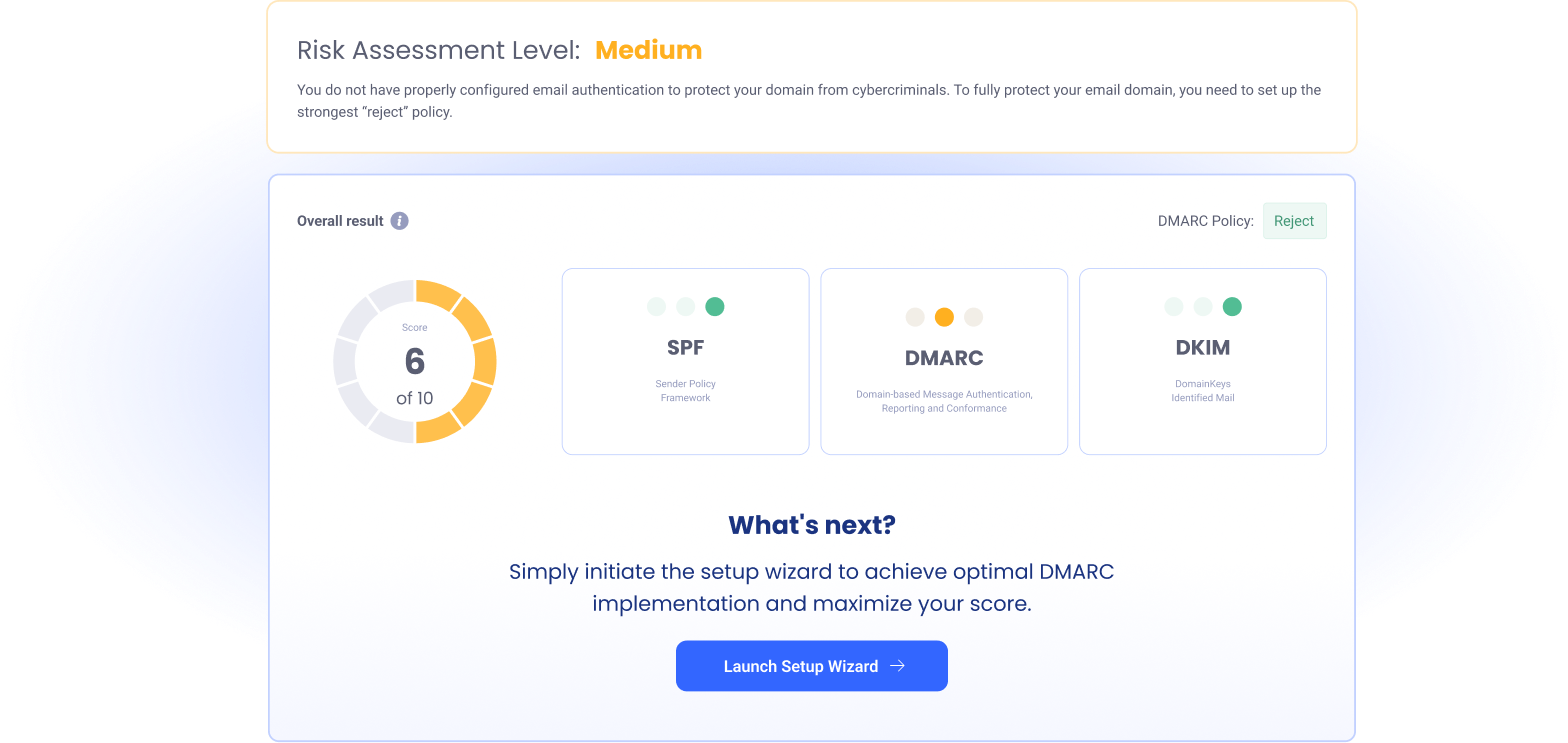
The tool most people meet EasyDMARC through.
EasyDMARC protects organizations' email — DMARC, SPF, DKIM, BIMI. But before anyone signs up, they want one question answered: is my domain actually safe? The Domain Scanner — surfaced publicly as the Domain Health Check and Domain Tester — answers it for free, with no account. Type a domain, get an instant report on its SPF, DMARC, DKIM, and BIMI records.
That makes it the single most-used tool among guest, logged-out visitors — the top of the acquisition funnel and, for a lot of people, their first impression of the whole product. So it has to do two hard things at once: hand a complete stranger a serious security audit they can understand in seconds, and give them an honest, non-pushy path to fix whatever's broken.
A guest tool is a strange brief — no onboarding, no context, no second chance. The scanner has seconds to be legible, credible, and genuinely useful before it earns the right to suggest a next step.
What I designed.
I owned the Domain Scanner end-to-end as a guest experience — the scan state, the results report, the guided fix funnel, and the embeddable widget — all on the EasyDMARC design system.
- Default scan state — the entry point: one field, one promise, and a quiet “embed” affordance for other sites.
- The post-scan report — a plain-language risk level, an overall score out of 10, per-record SPF / DMARC / DKIM cards, the detailed record values, and inline warnings for the subtle cases.
- A fix funnel for every result — a setup wizard with a dedicated, self-contained track for each failing record (SPF, DMARC, DKIM), including all intro, publish, verify, error, and success states.
- The embed widget builder — a live-preview “Adjust the embed” modal with theming, content controls, and auto-generated embed code, so the scanner can live on anyone's site.
The screens below are a selection — enough to show the structure and the key states, not every screen in the flow.
One field, one promise.
The scanner opens on a single input. No login, no setup, no choosing what to check — just a domain and a Scan button, wrapped in a one-line explanation of what comes back. The Scan Domain button stays disabled until there's something to scan, and a small Get an embed link in the corner quietly signals that this tool can travel.
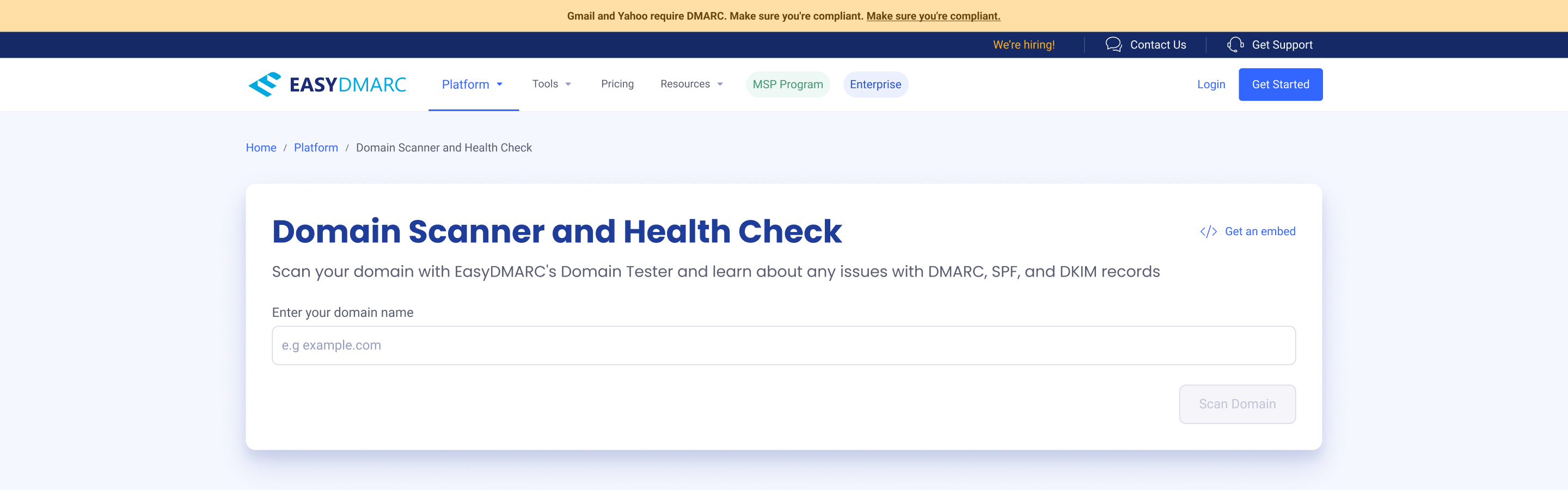
The entry point — deliberately bare. Everything a guest needs to start is one field and one button; the landing page around it does the convincing, the tool just works.
The scanner in its native habitat.
The scanner doesn't live alone — it sits at the top of a public marketing page that has to earn a stranger's trust before they type anything. Below the input: a plain-language explainer of what a domain health check is (with a preview of the report they'll get), the reasons it matters, a diagram of the four records being checked, social proof, and an FAQ. The scan module leads; everything under it supports the decision to use it.
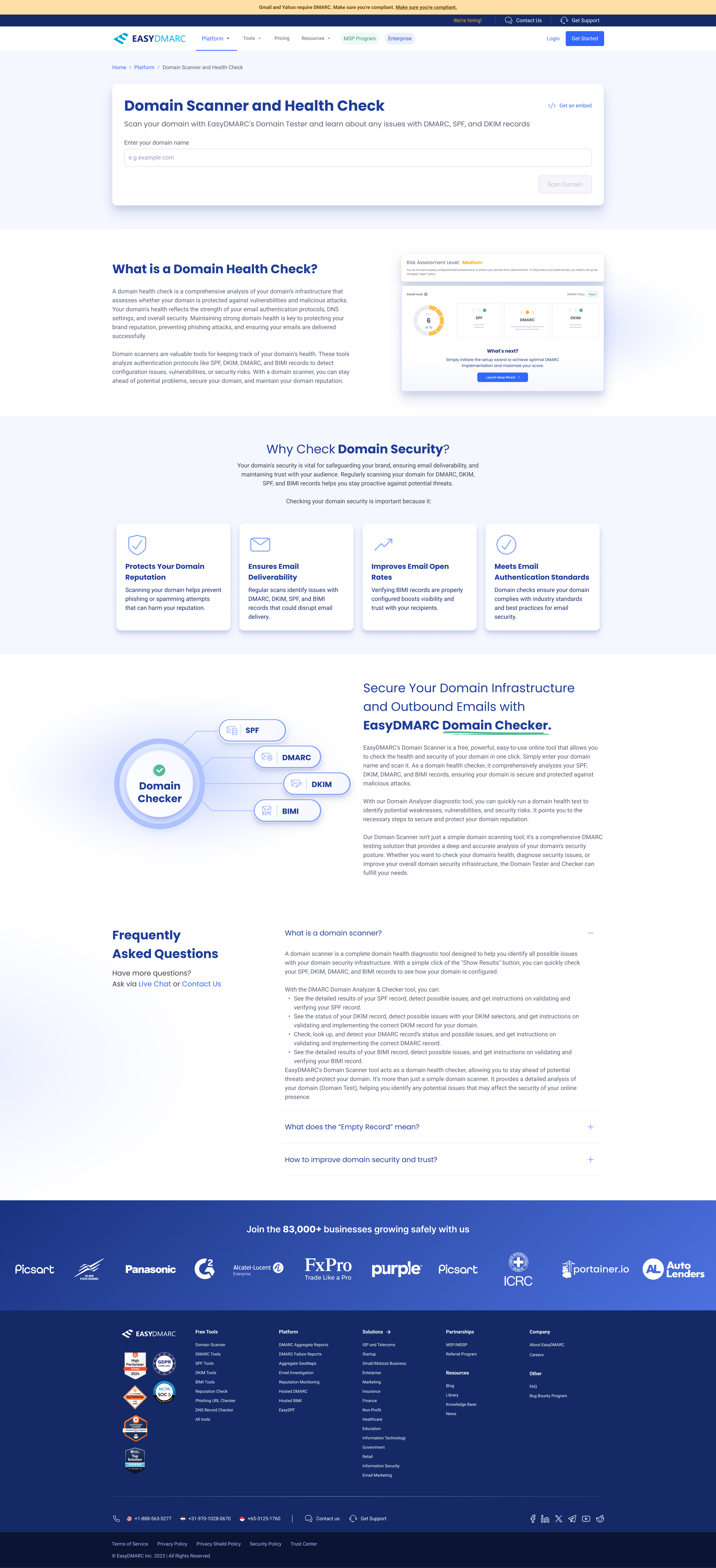
The whole page, top to bottom — scan module first, then the explainer, the four-record diagram, social proof, and the FAQ. The tool is the hook; the rest of the page is there to convert a curious visitor into someone who scans.
A serious audit a stranger can read in seconds.
A scan returns a lot — SPF, DMARC, DKIM and BIMI status, the raw record values, policy strength, and a verdict on each. The job of the report is to rank that by what matters: a plain-language Risk Assessment band up top, a single overall score out of 10, then per-record cards that use a three-dot traffic light so the state reads before the label does.
Below the summary, each record expands into its actual value and a specific, human explanation of what's wrong and why it matters — with inline warnings for the subtle cases, like a DMARC policy that's technically present but set too strictly. Every path forward narrows to one button: Launch Setup Wizard.
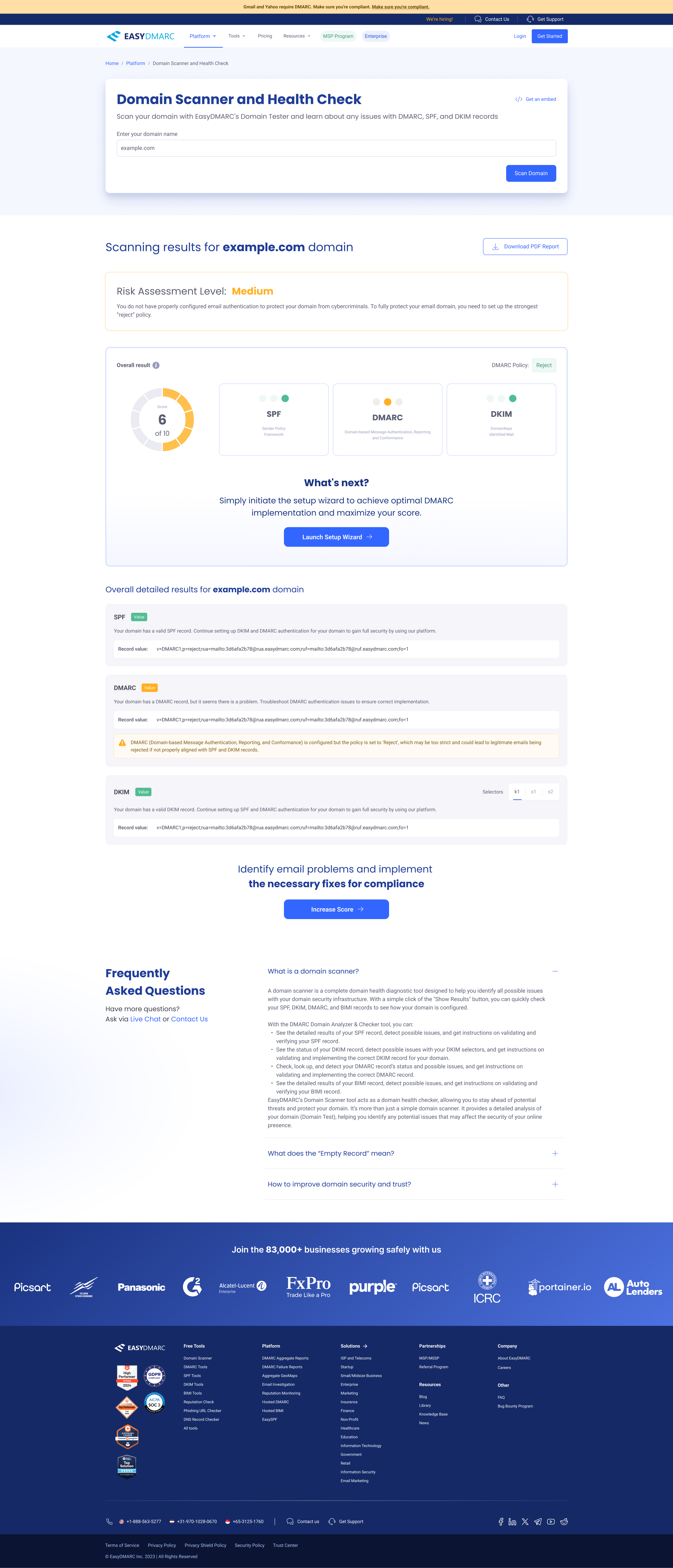
The same report in full context — the scan box stays on top so a guest can immediately re-scan or try another domain, the detailed records and the “Increase Score” nudge sit below the summary, and the supporting FAQ answers the questions a first-time visitor still has.
A guided fix for every failing record.
A score isn't the point — fixing the domain is. Clicking through from the report launches a setup wizard that turns the report's findings into work. A three-stop stepper — Activate EasySPF → Activate DMARC → Activate DKIM — frames the whole journey, and the entry screen restates exactly what the scan found, counting the detected issues per record so the user knows the size of the job before they start.
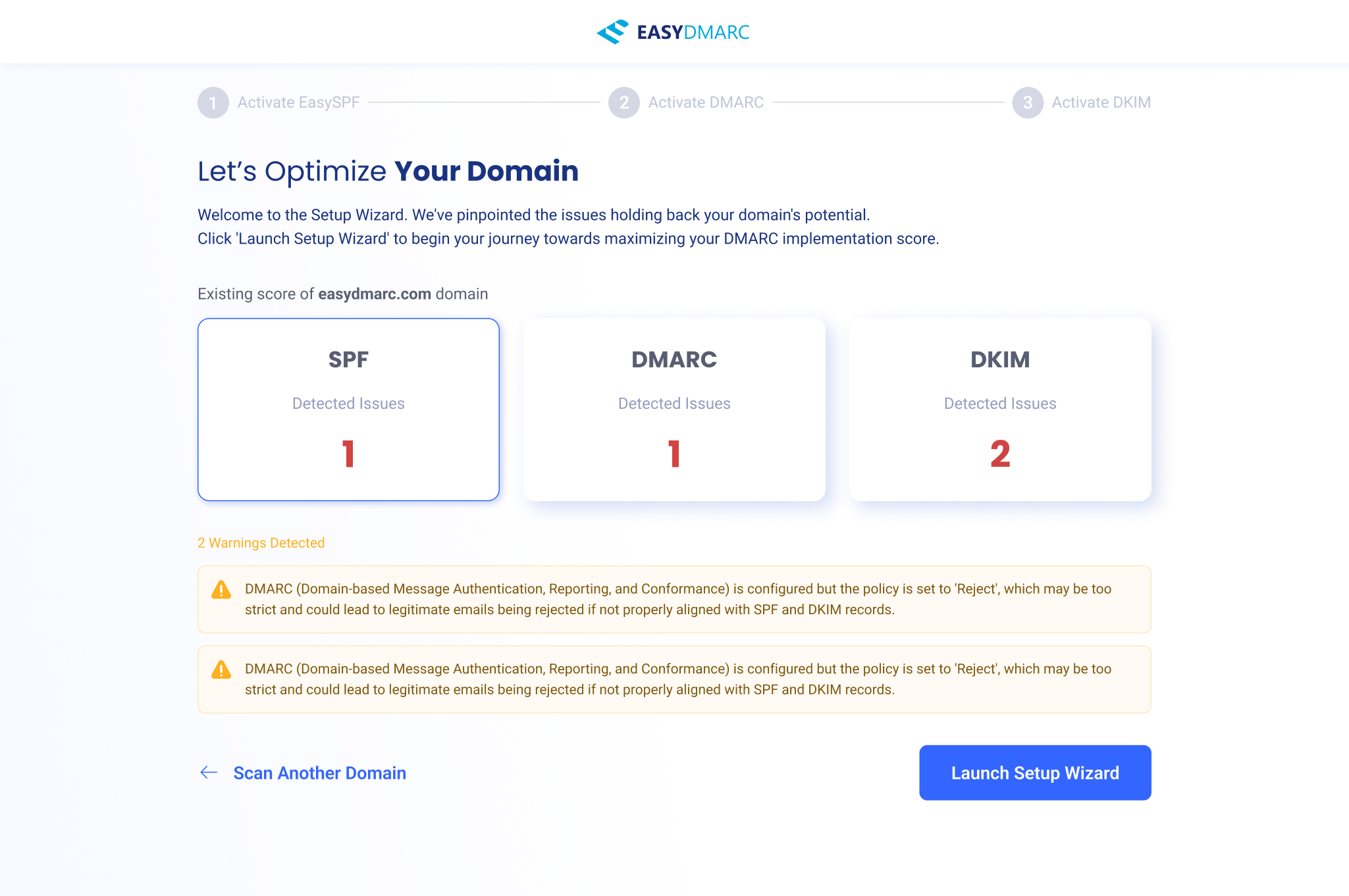
The wizard entry — the scan's findings, restated as a to-do list. Detected-issue counts per record (and any warnings) set expectations before the first step.
Each record then gets its own self-contained track, the same shape every time: explain the issue in plain terms, show the current state, hand over the exact record to publish, and verify it. Designing one rhythm and reusing it across SPF, DMARC, and DKIM is what keeps a multi-step DNS task from feeling endless.
SPF
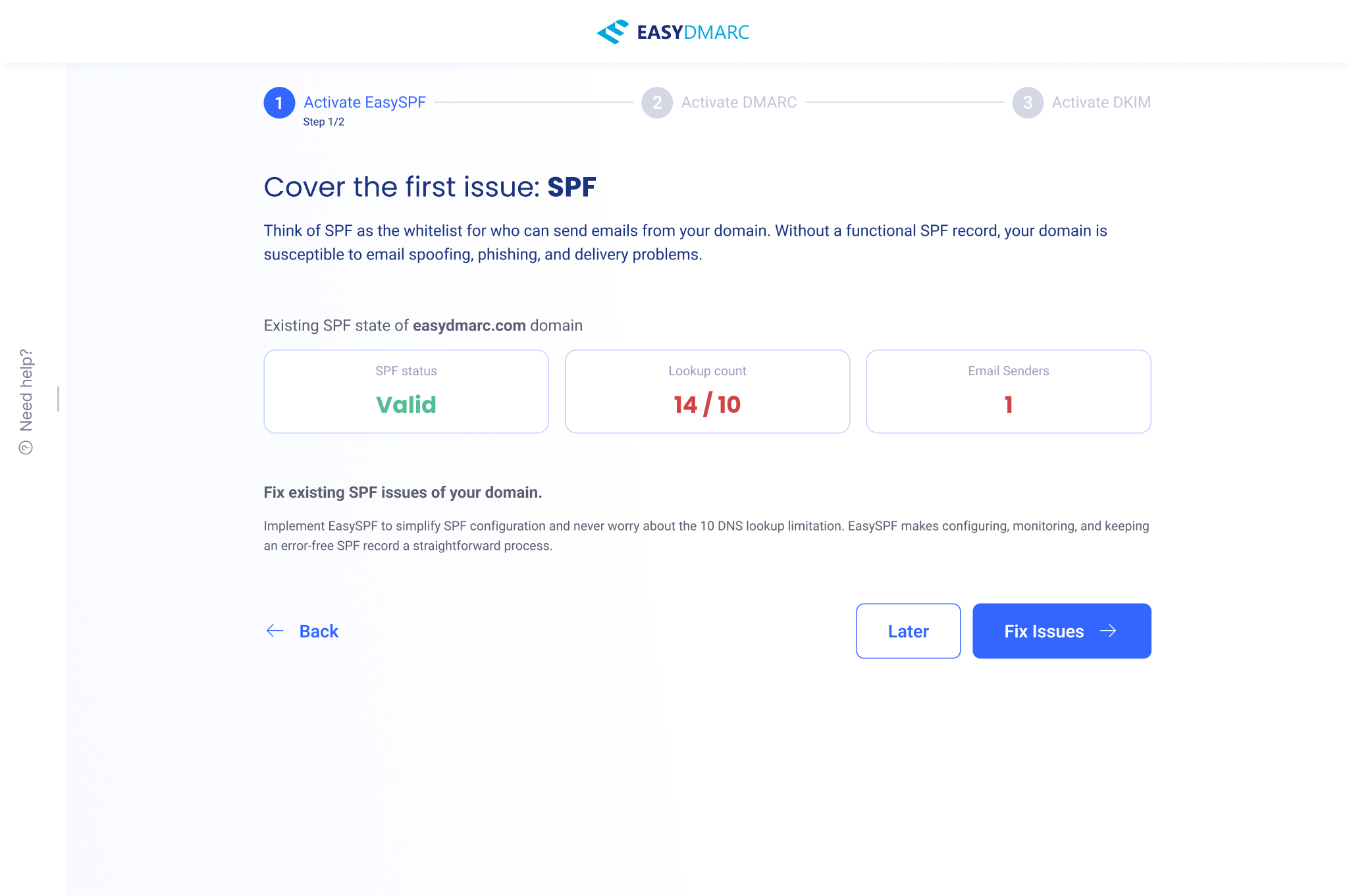
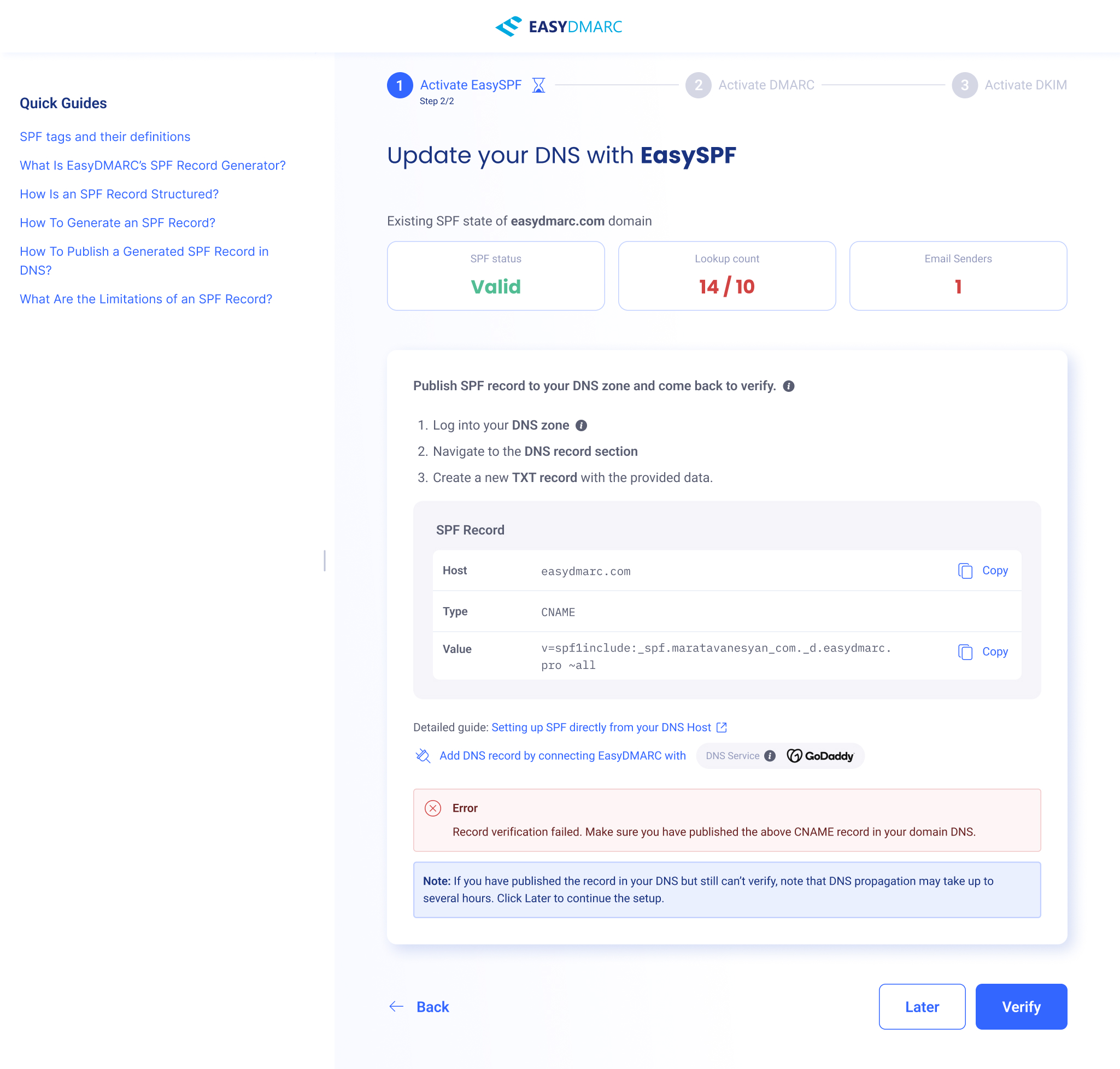
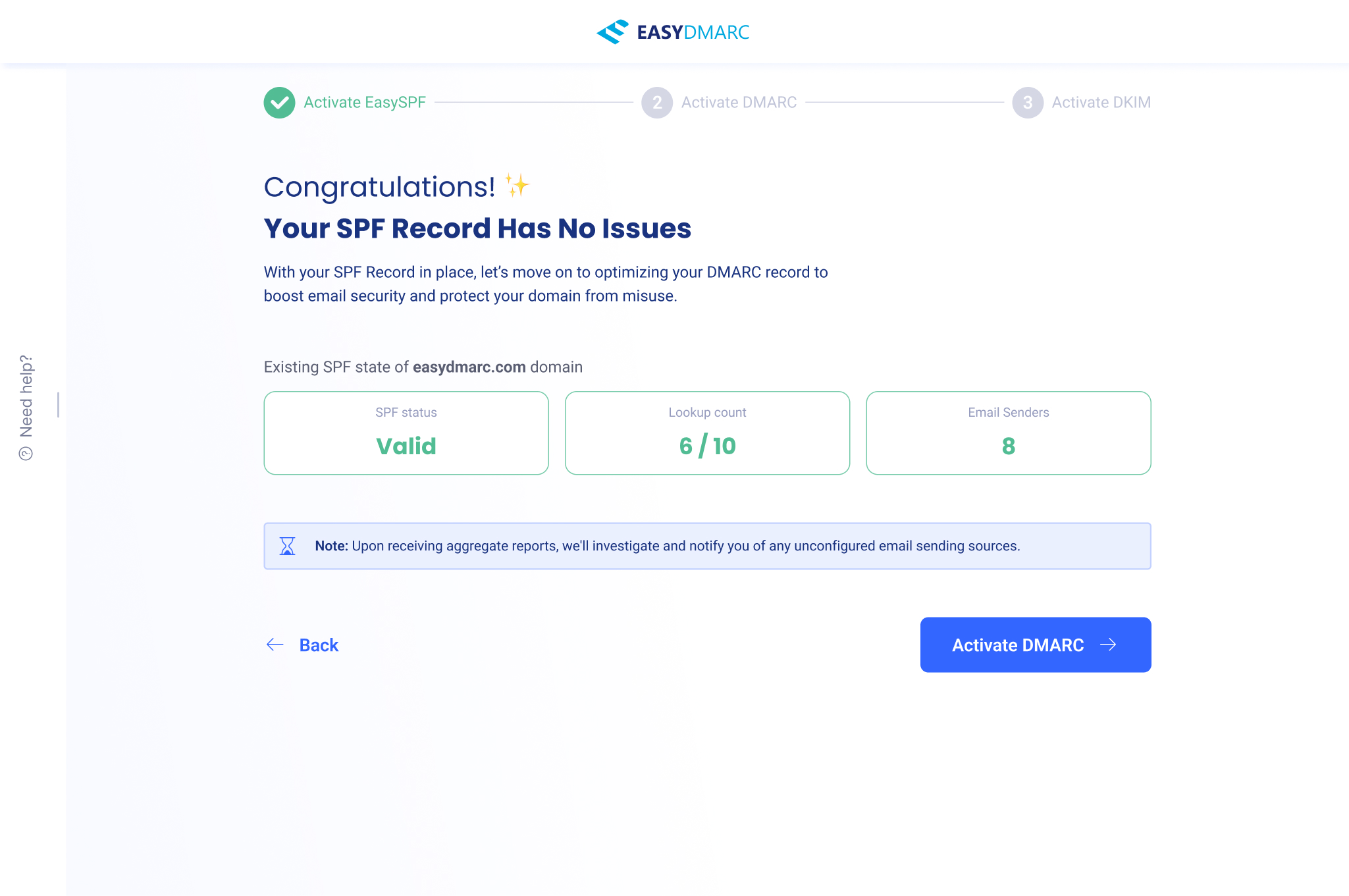
The SPF track — intro (what SPF is, plus the current lookup-count and sender stats), the publish-and-verify step with the exact record to add and a verification-failed error state, and the success screen that hands off to DMARC.
DMARC
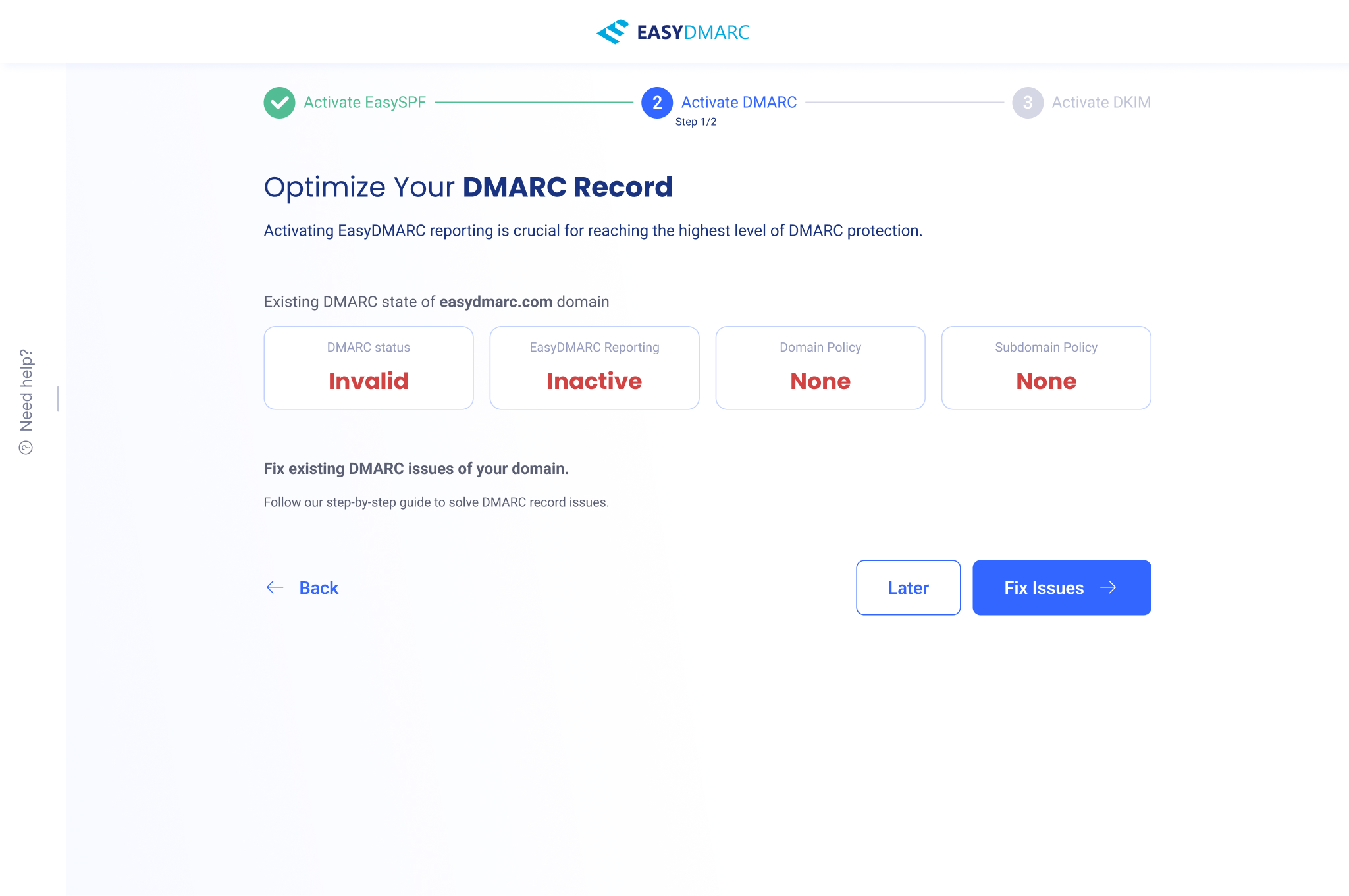
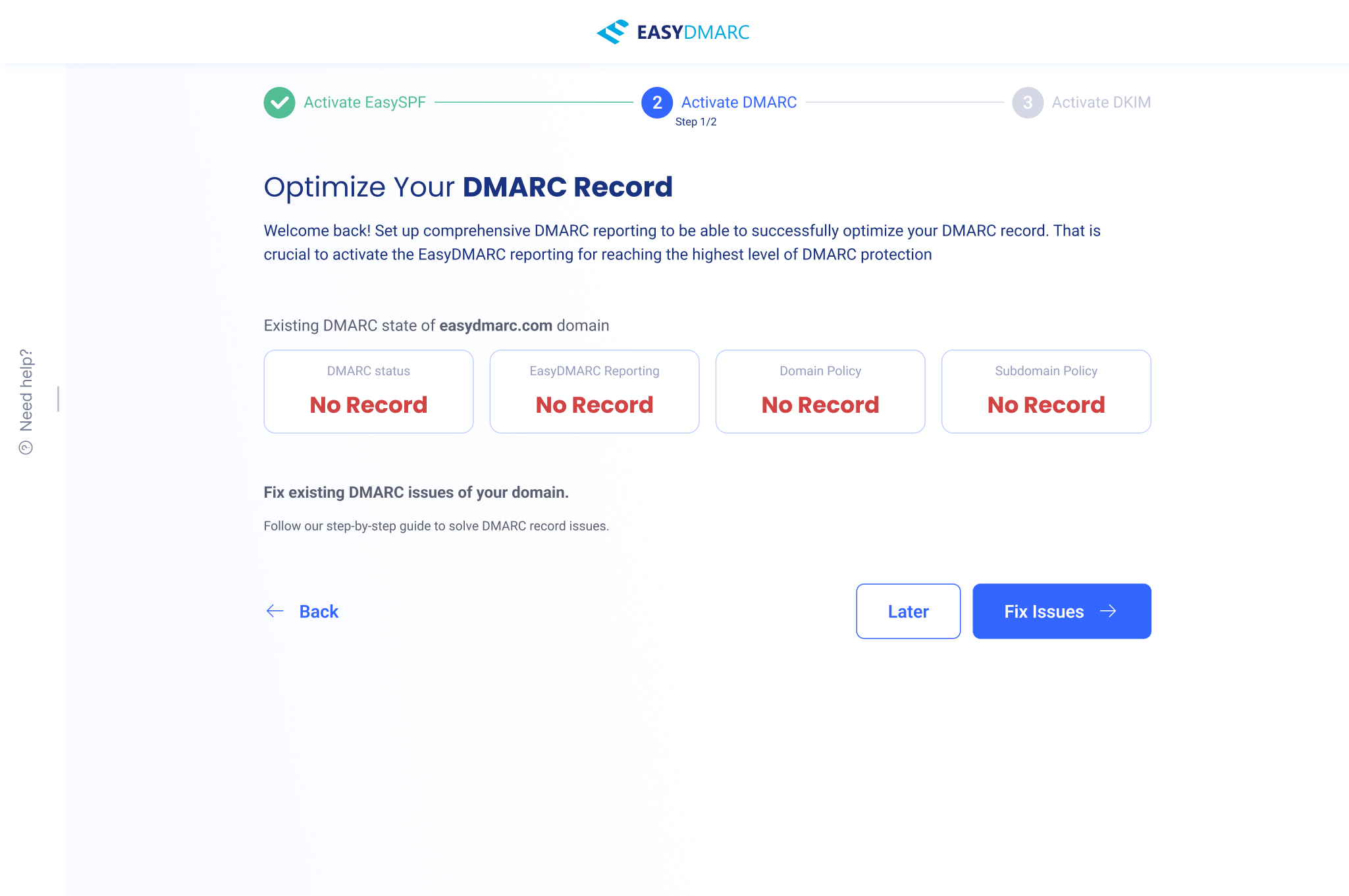
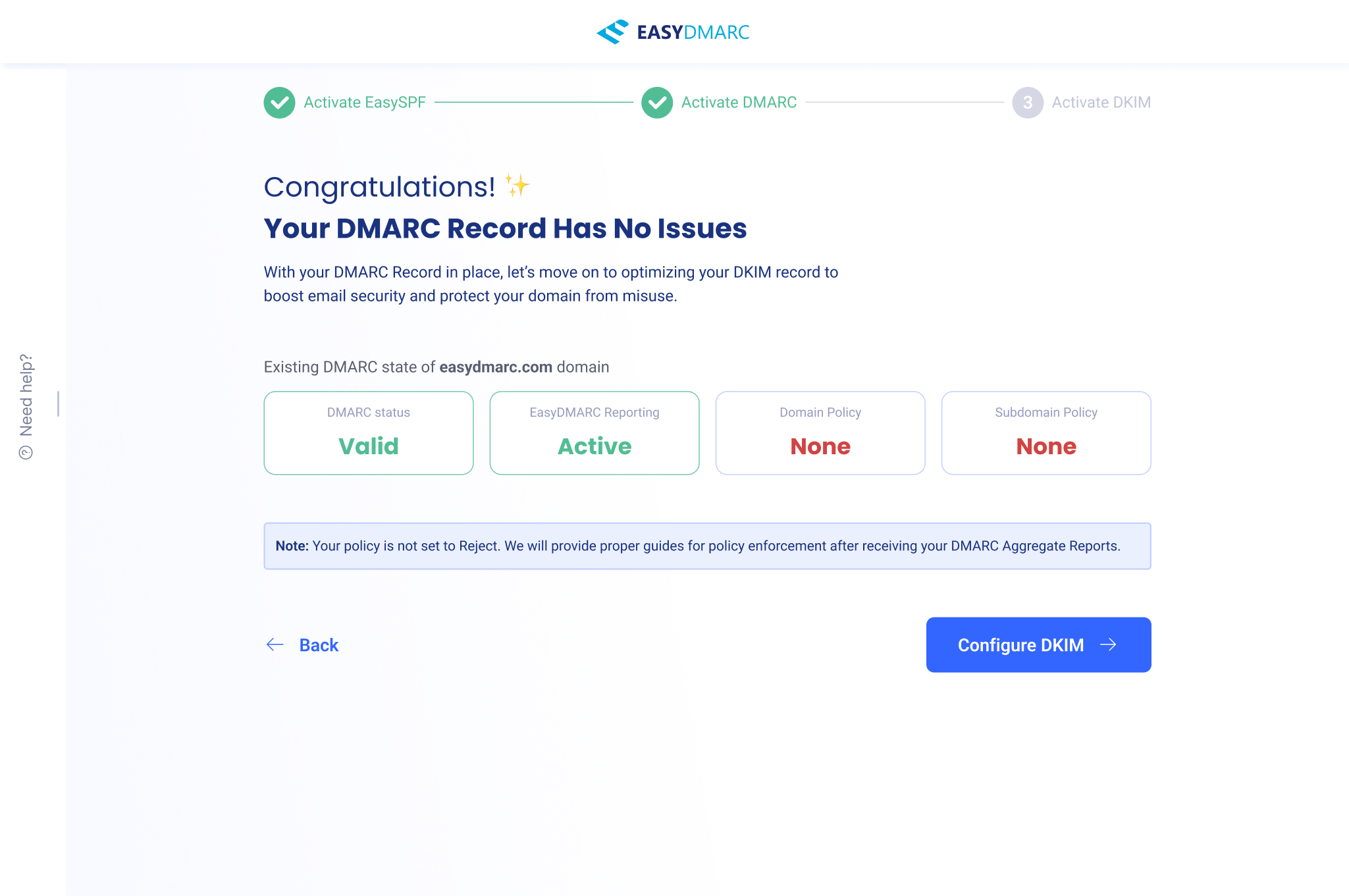
The DMARC track follows the same rhythm — a status read (Invalid / Inactive / No Record), a step-by-step fix, and a “no issues” success that routes straight into DKIM. Same layout, same buttons, different record.
DKIM
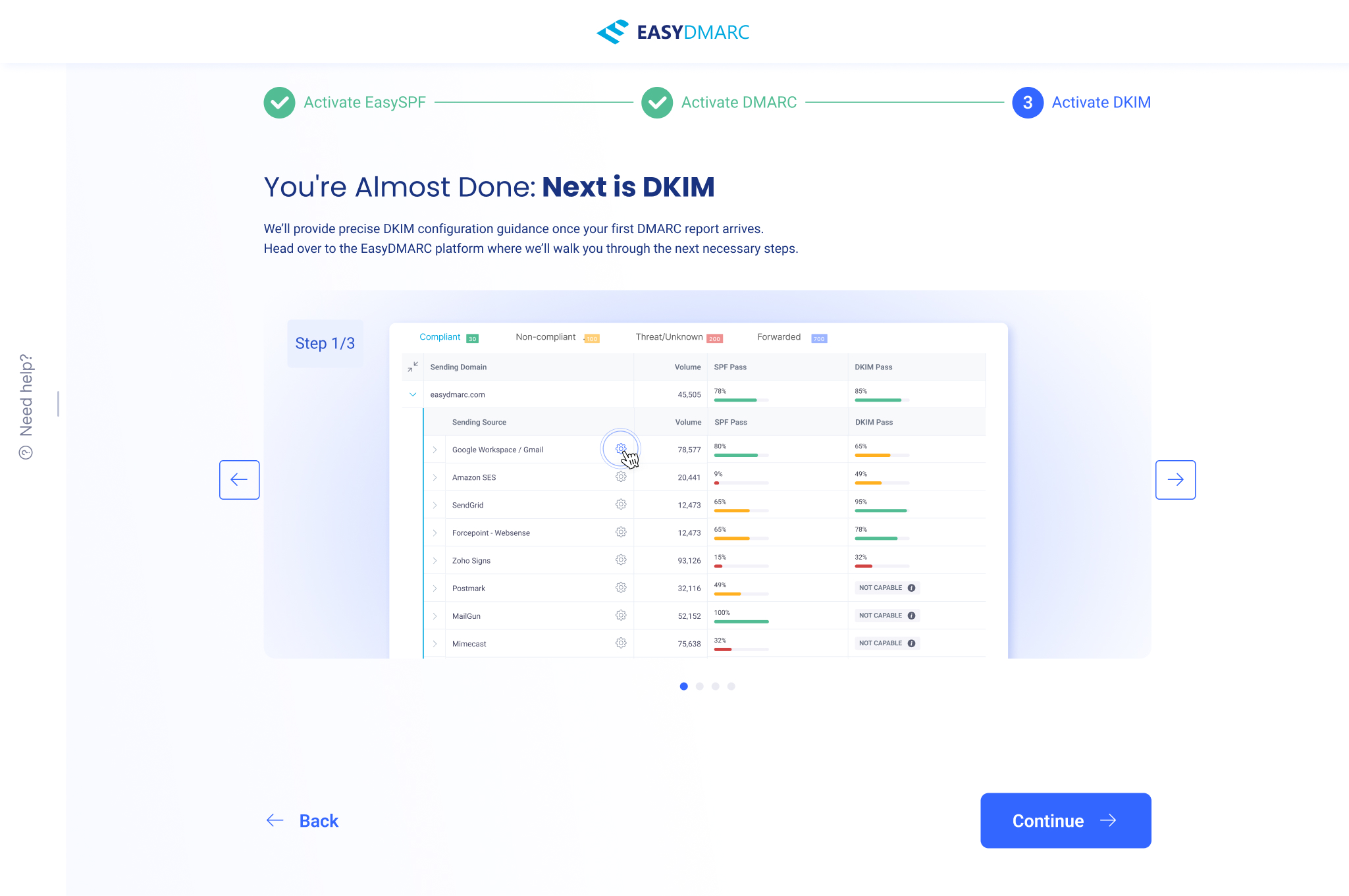
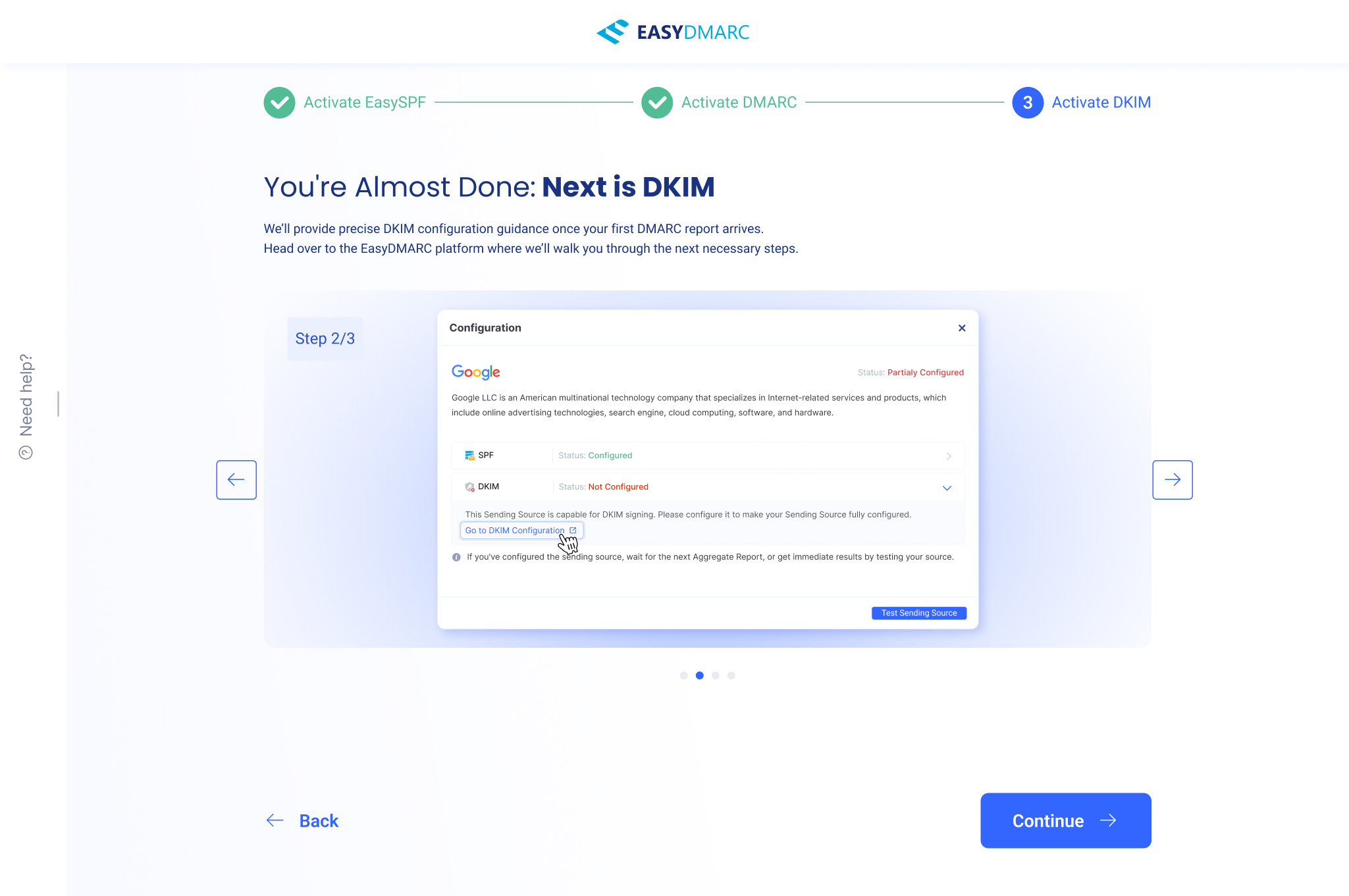
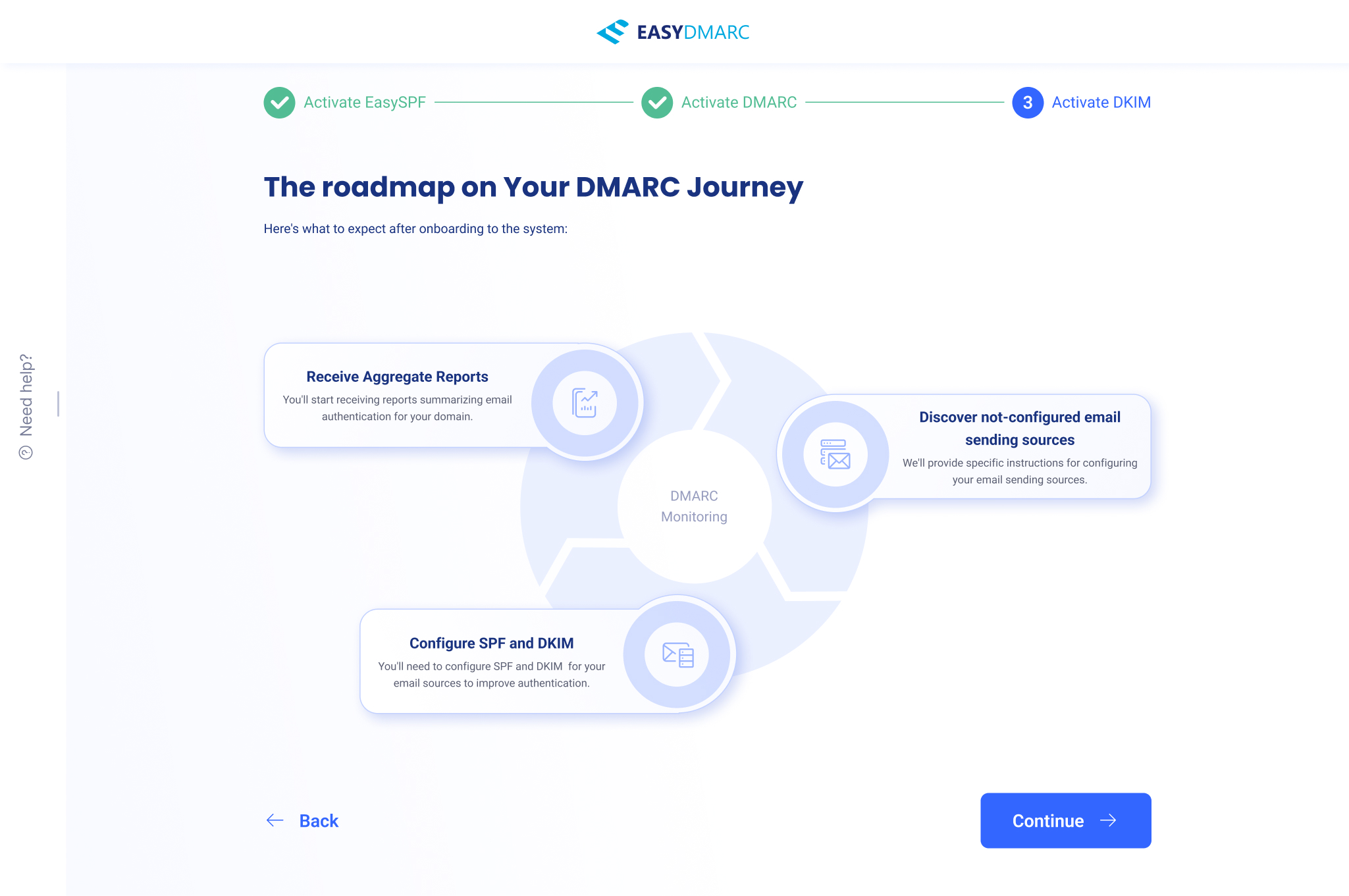
DKIM is the most open-ended — its configuration depends on each sending source — so this track leans on a preview carousel and a per-source configuration modal, then closes on a roadmap of what to expect after onboarding: aggregate reports, discovering unconfigured senders, and configuring each one.
A scanner that travels.
The most-used guest tool gets more useful the more places it lives. From the scan page, Get an embed opens an “Adjust the embed” builder: a live preview on the left, controls on the right, and an auto-generated <script> snippet underneath that drops the scanner onto any site.
The controls cover the things a host actually cares about — a light or dark theme, full color customization (background, title, paragraph, buttons, shadow), editable title, paragraph, and button labels, a redirect URL, and a switch to deactivate the widget's outbound links. The preview updates as they go, so what they configure is exactly what they ship.
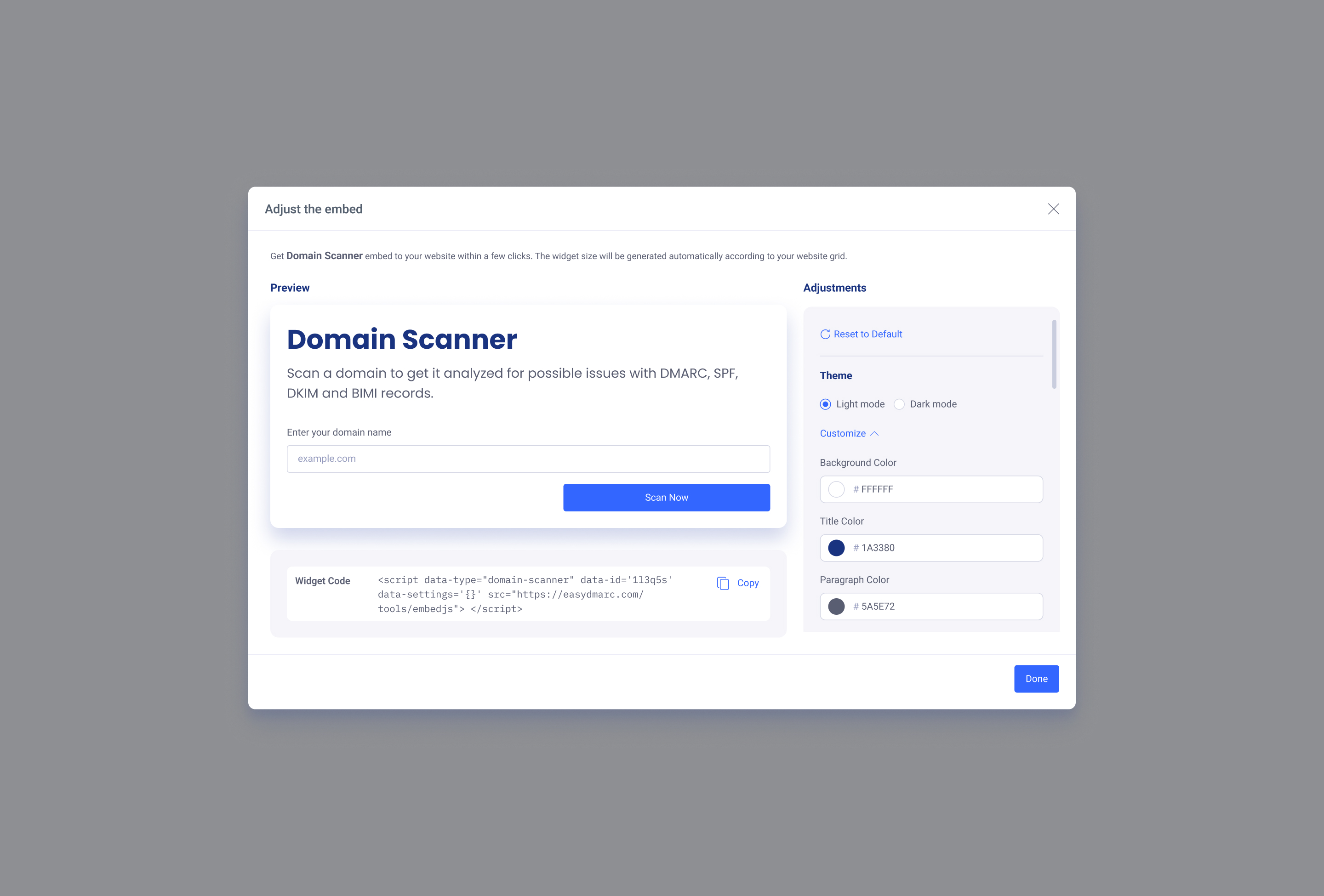
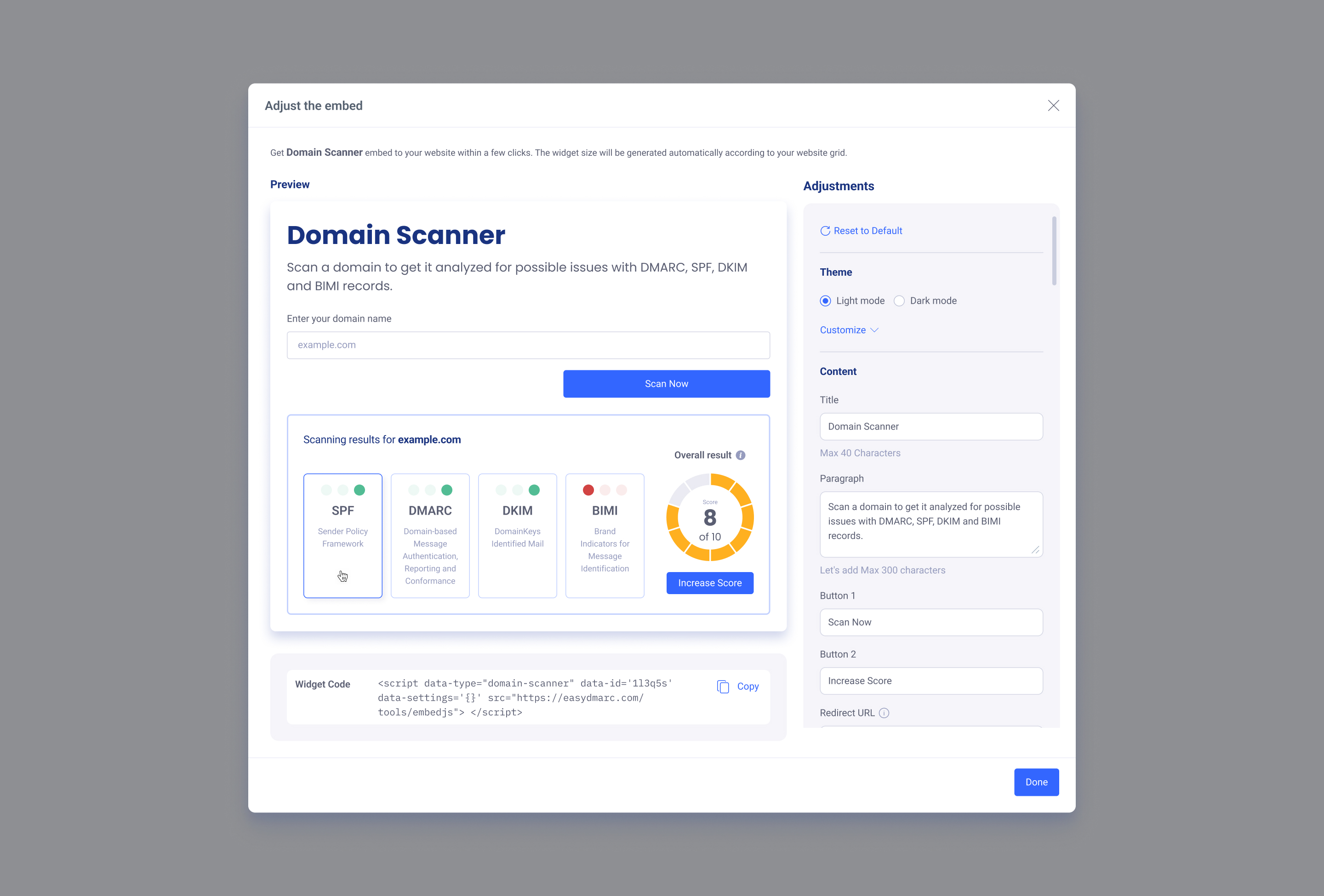
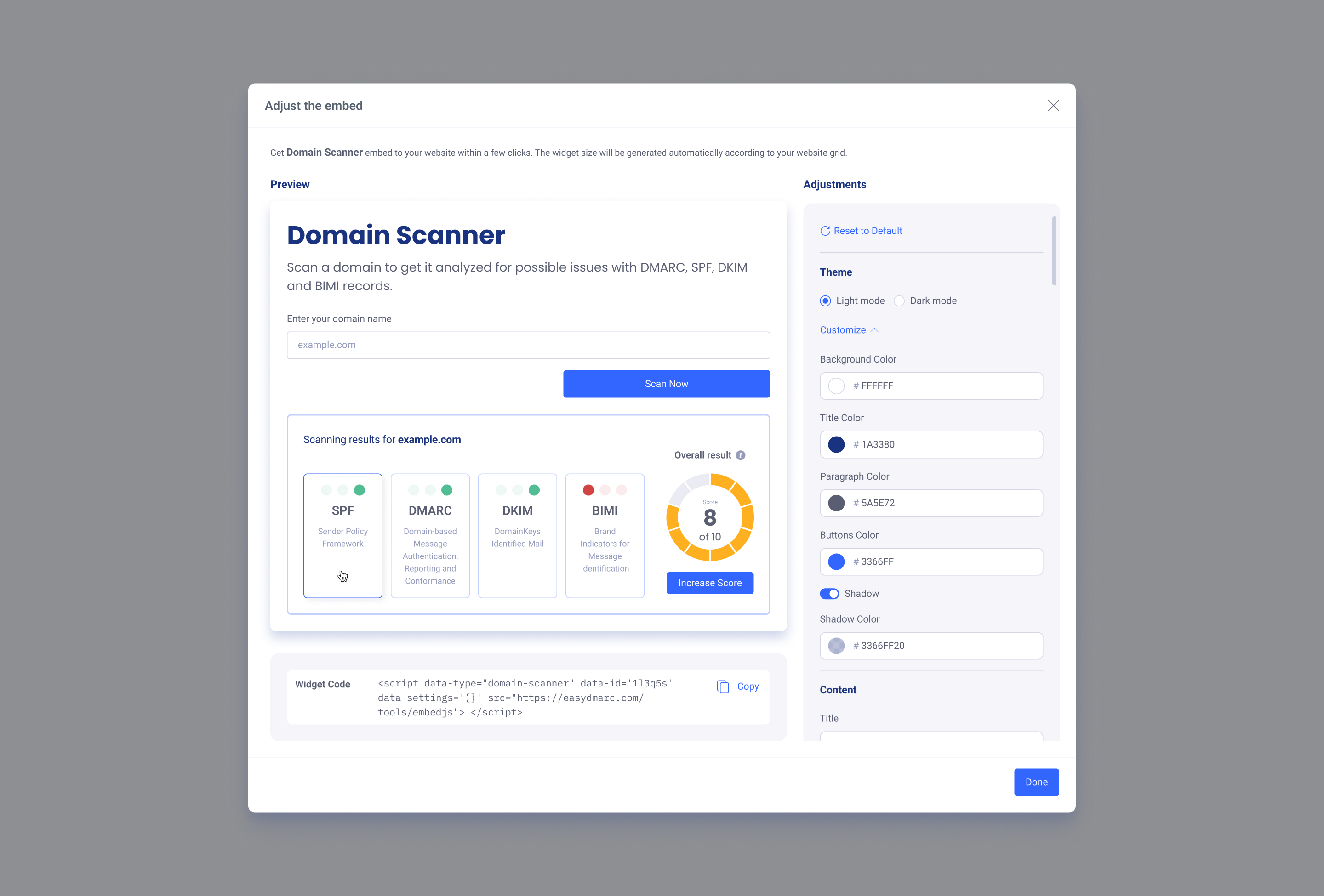
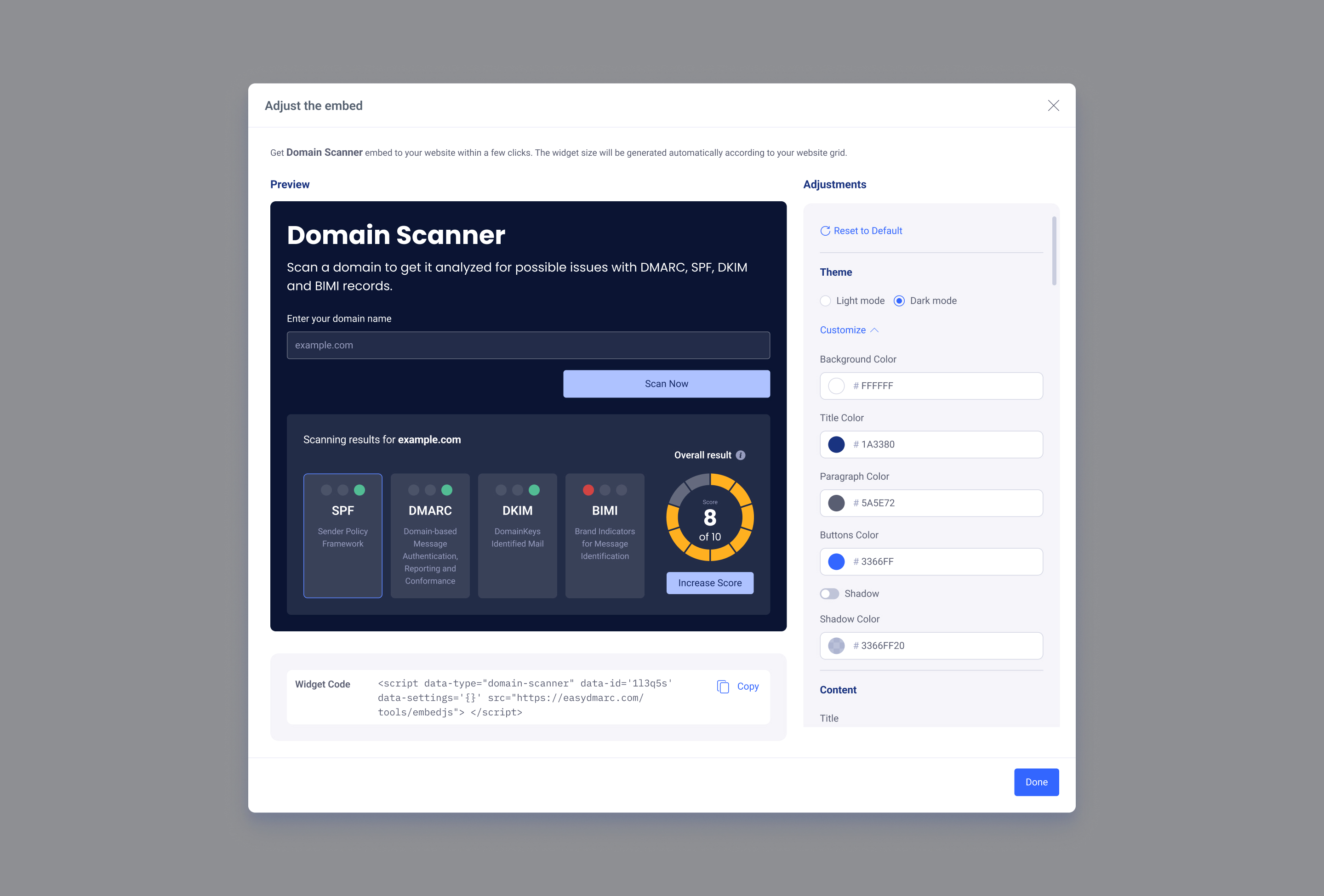
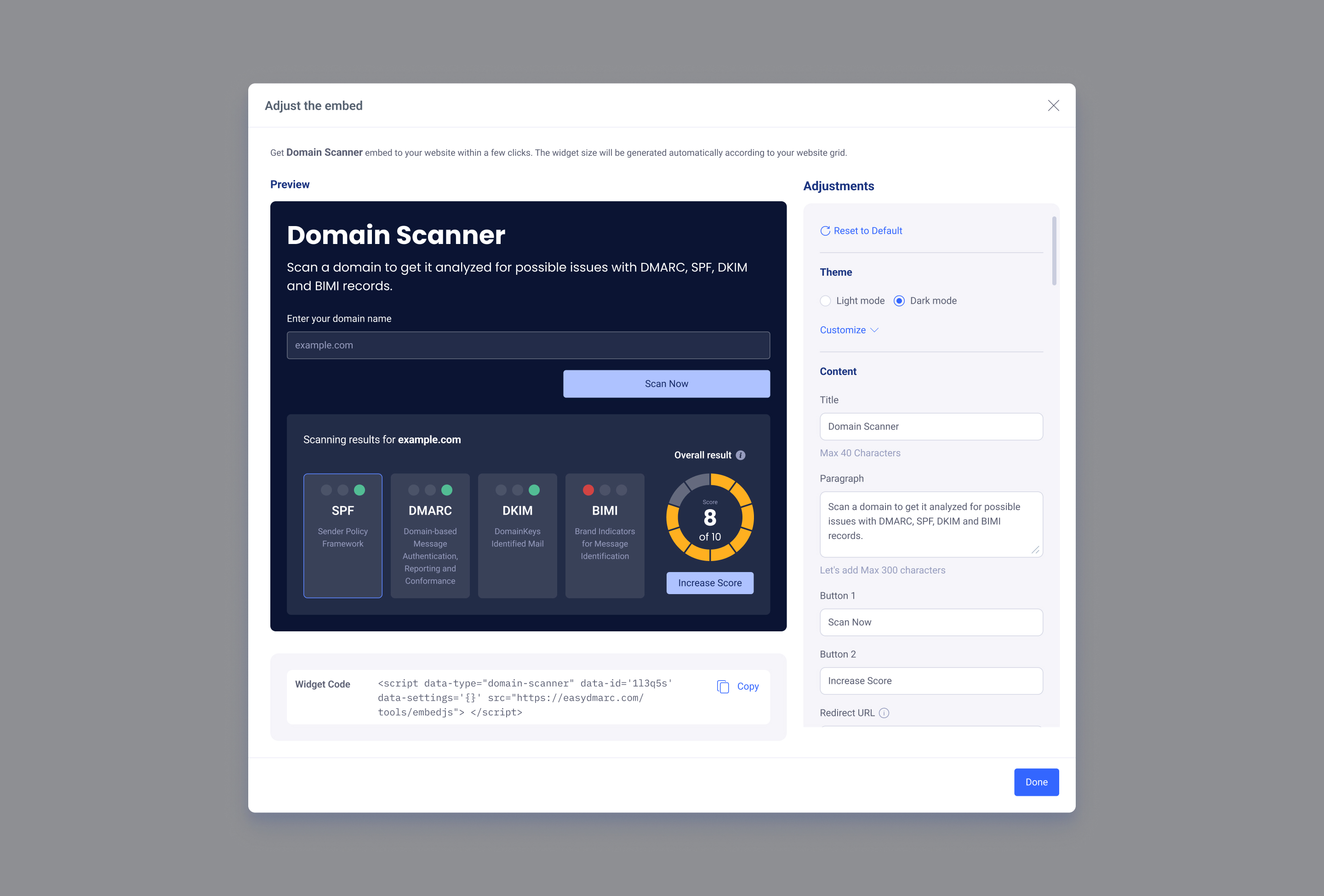
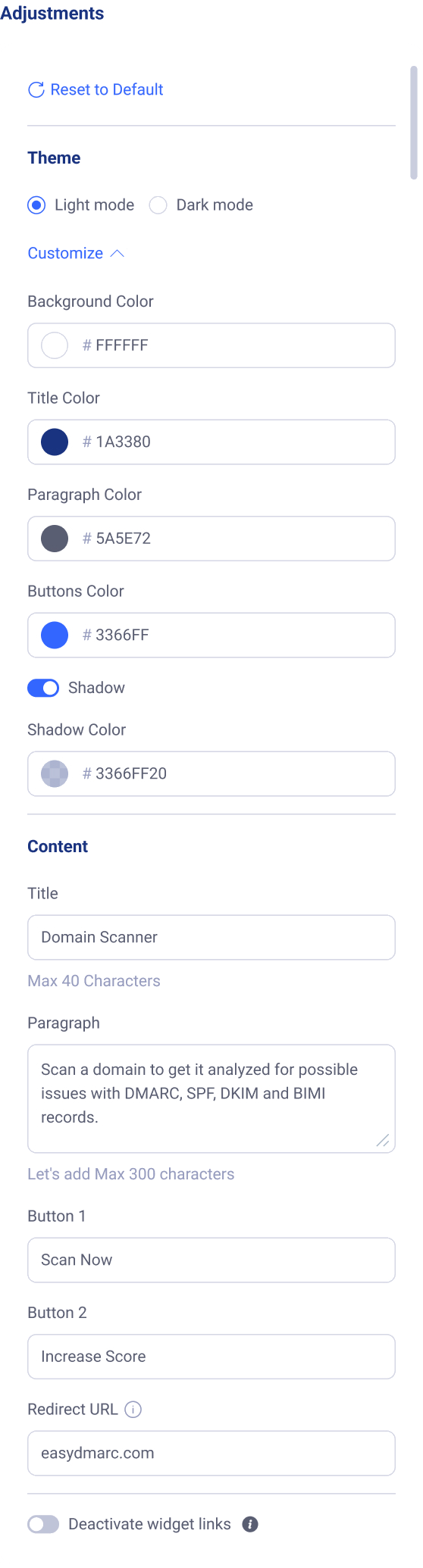
The whole builder in one place — light and dark themes, full color control (background, title, paragraph, buttons, shadow), a live preview that updates with a sample scan result, the generated <script> snippet, and the Adjustments settings bar where every theme and content choice is made. The same scanner, restyled to fit someone else's site, quietly carrying EasyDMARC with it.
An anonymous check, turned into a path.
The Domain Scanner is the front door — the most-used tool among guest visitors and, for many, the first thing EasyDMARC ever does for them. The design turns a cold, anonymous health check into something legible and credible in seconds, then converts curiosity into momentum: a guided, self-serve funnel that walks a stranger from “here's what's wrong” to “here's exactly how to fix it,” one record at a time.
And because the same tool is embeddable, every fix it drives can happen on someone else's site too — the scanner markets the platform by being genuinely useful first.
What I'd carry forward
The strongest decision here was committing to one repeated rhythm — explain, show state, hand over the record, verify — and reusing it across SPF, DMARC, and DKIM instead of designing three bespoke flows. For a guest with no patience and no onboarding, predictability is the feature. Once the first track teaches the pattern, the rest of the funnel almost reads itself.
Happy to walk through the funnel in detail — the states that didn't make the cut, the embed tradeoffs, the copy decisions — in a conversation.
Get in touch →Like what you see?
I'm open to senior product design roles and select freelance engagements. Always happy to chat.
Get in touch →